Finance & Admin AI · Finance
Admin that runs itself.
Finance & Admin AI is your company's automatic back office. It books, reconciles, collects, prepares VAT and forecasts cash, and you only look at what really needs you. You pay in credits, only for what you use.
- It books by itself.The AI posts invoices and bank movements when it is sure. Only doubtful cases land in the review queue.
- Every action has its reason.Every entry comes with its explanation and can be undone. Payments and large invoices wait for your approval.
- Real numbers.Figures come from your accounting data, never invented, and every answer shows its sources. Your accountant works on the same data.
Every feature
Every screen, explained.
Overview
Today, on one screen.
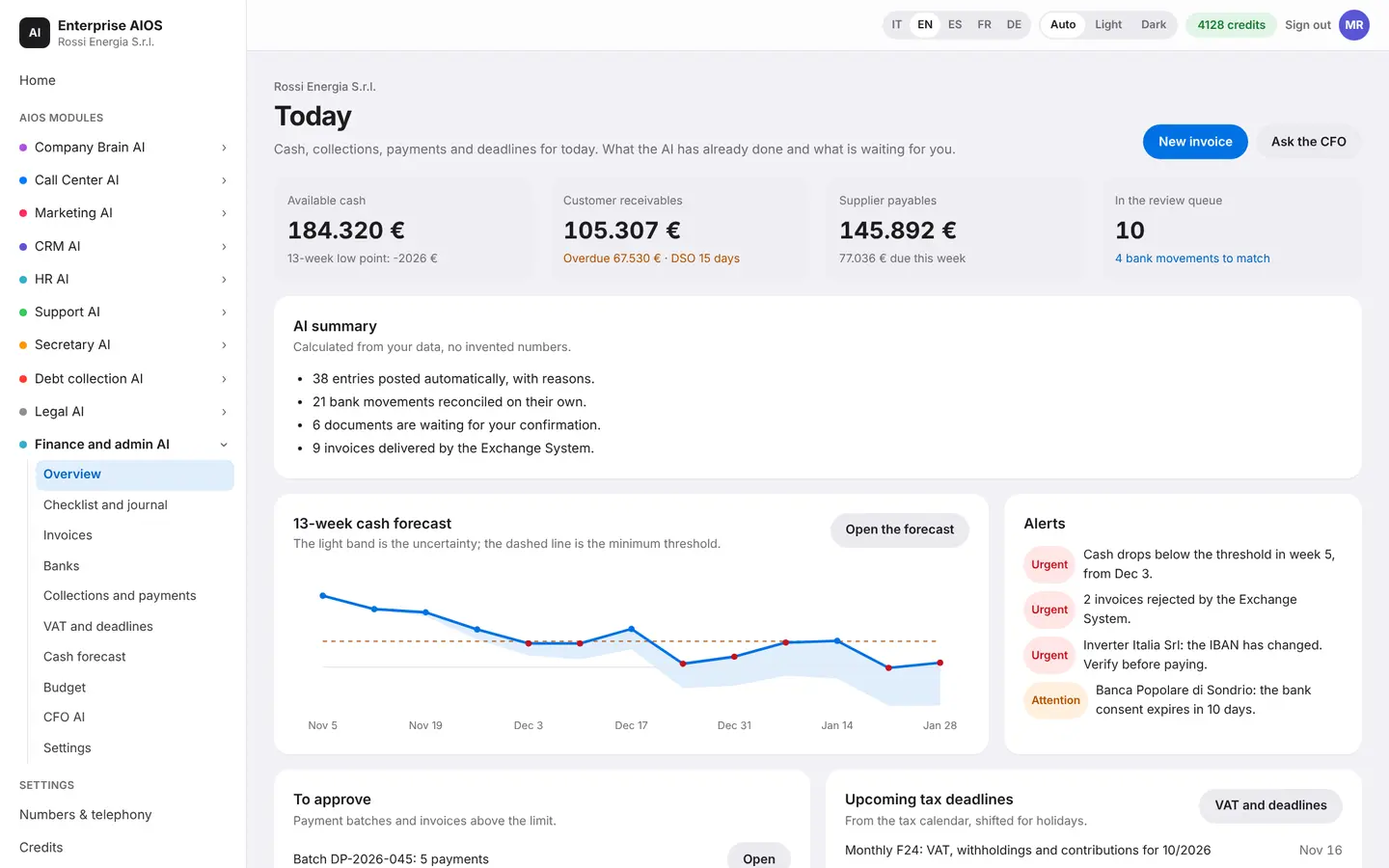
What it does. Today's cash, upcoming deadlines and what the AI has done.
You see available cash, the 13-week cash forecast, pending approvals and alerts. Further down are the next tax deadlines and a summary of what the AI did on its own, with the reason for every action and a button to undo it.
- Cash today and forecast
- Approvals and alerts
- Next tax deadlines
- What the AI did, with Undo
Checklist and journal
Bookkeeping that does itself.
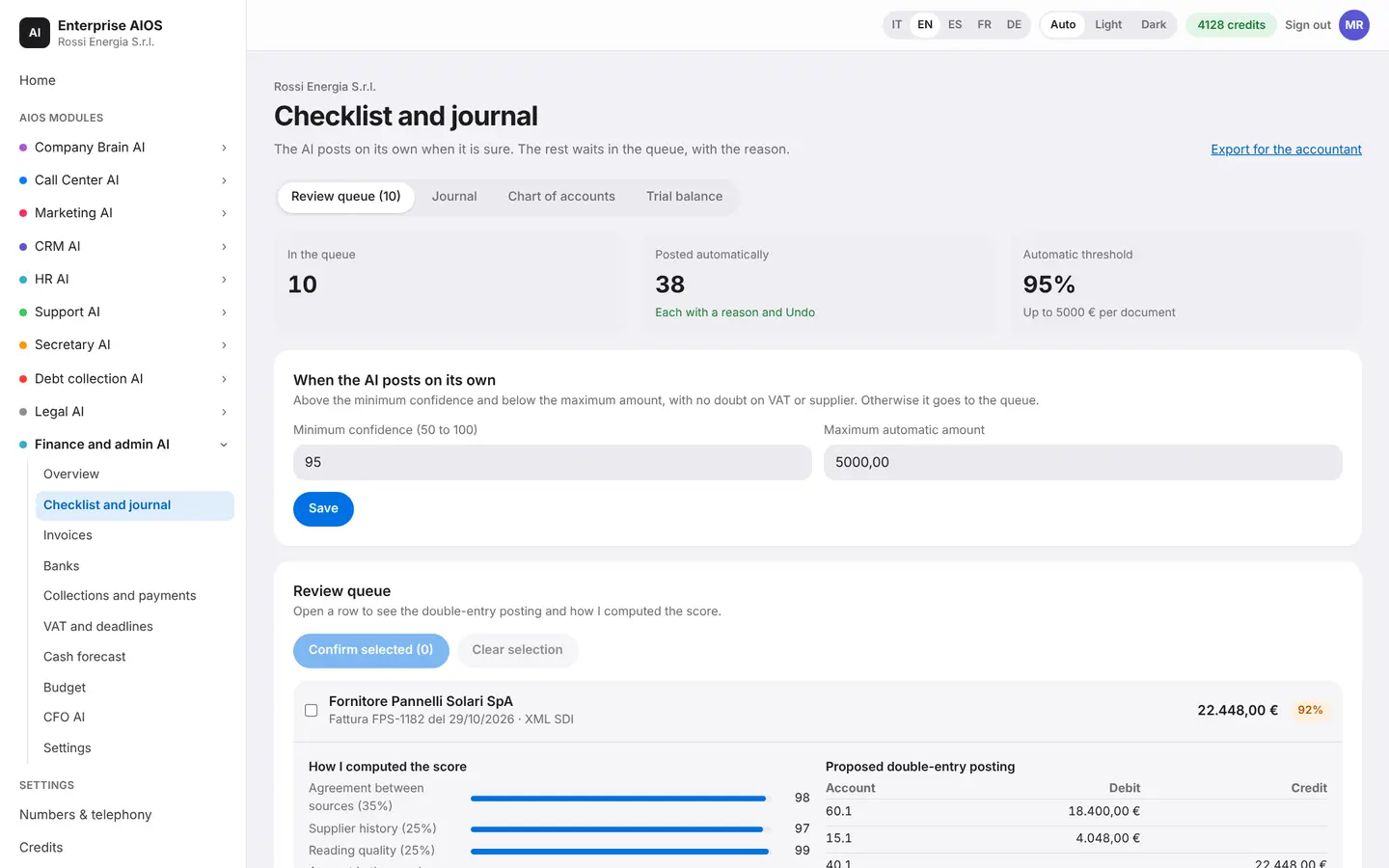
What it does. Posts invoices and bank movements, and asks for help only when in doubt.
When it is sure, the AI posts by itself in double entry, above a minimum confidence and below a maximum amount that you set. Doubtful cases go to a review queue with the reason: new supplier, VAT doubt, amount over the limit. Every entry shows which model worked on it and how the score was calculated, and it can be reversed.
- Review queue with the reason
- Journal and trial balance
- Every entry can be reversed
- Close the period when you want
Invoices
E-invoicing without worry.
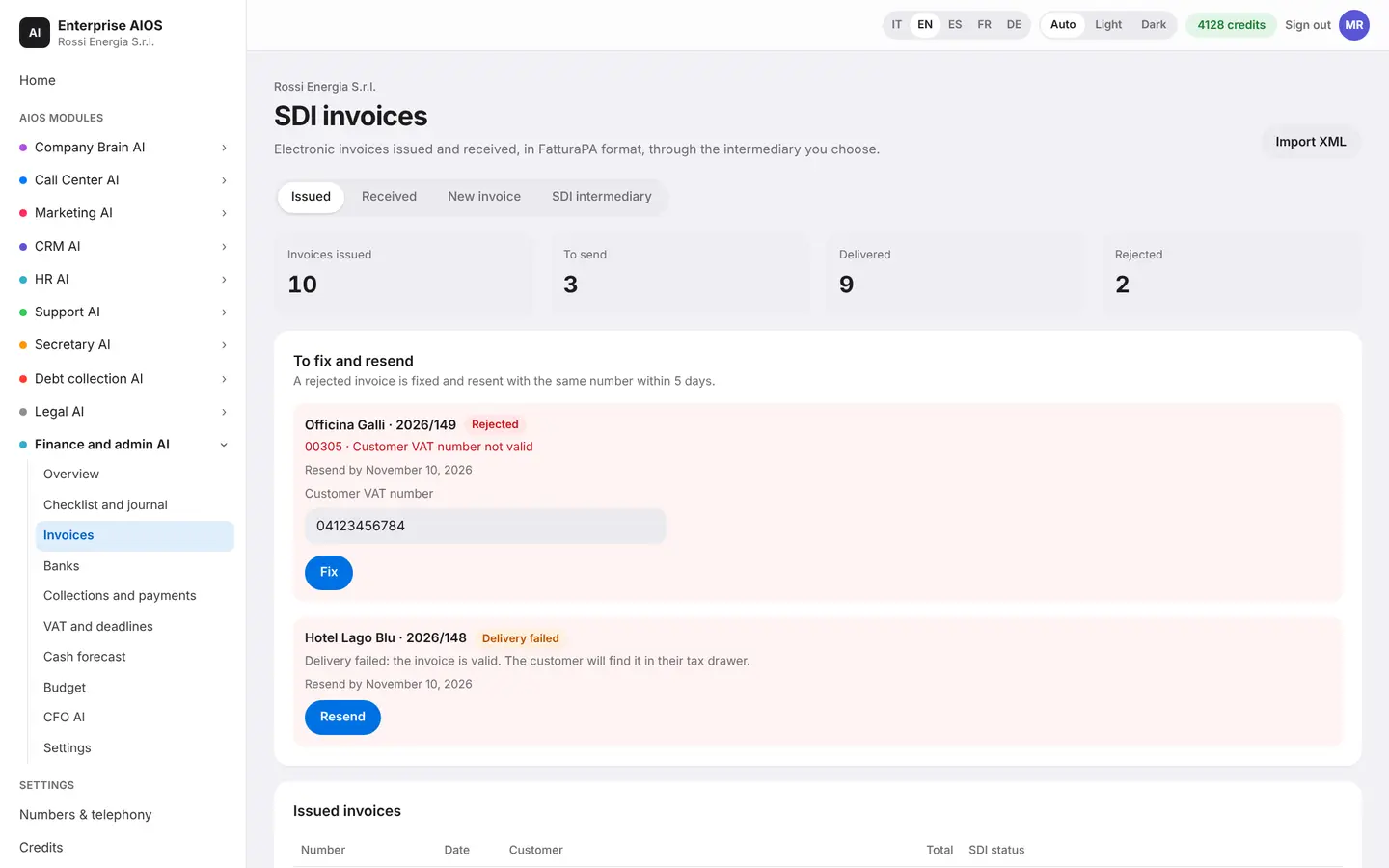
What it does. Issues and receives invoices through the Italian e-invoicing system (SDI).
You create an invoice while totals and XML update, and the SDI checks run before sending. Rejected ones are corrected and sent again. Supplier invoices arrive with the journal entry already proposed and the IBAN checked. Every invoice is linked to the customer, the payment and the books.
- Issued and received, in FatturaPA
- Checks before sending
- Rejections to fix and resend
- Linked to payment and books
Banks
Your accounts add up by themselves.
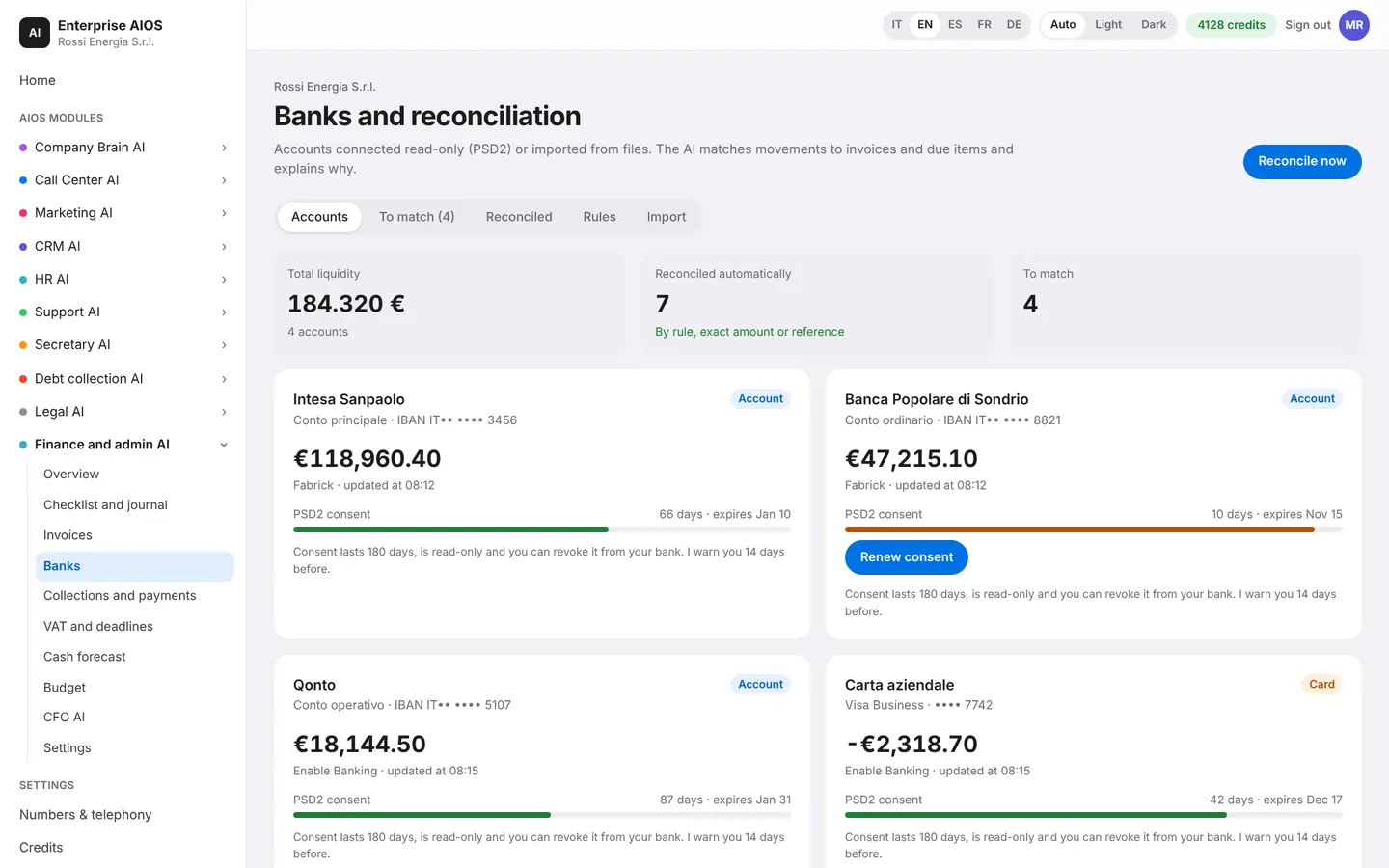
What it does. Connects bank accounts and matches movements to invoices.
Accounts connect in read-only mode, or you import a statement. The AI matches movements to invoices and due dates on its own and explains why it chose each match. You confirm the proposals and can always undo them. It also flags documents that are missing or arrived late.
- Read-only bank connection
- Matches with explanations
- Missing documents flagged
- Your own bank rules
Collections and payments
Collections and payments at hand.
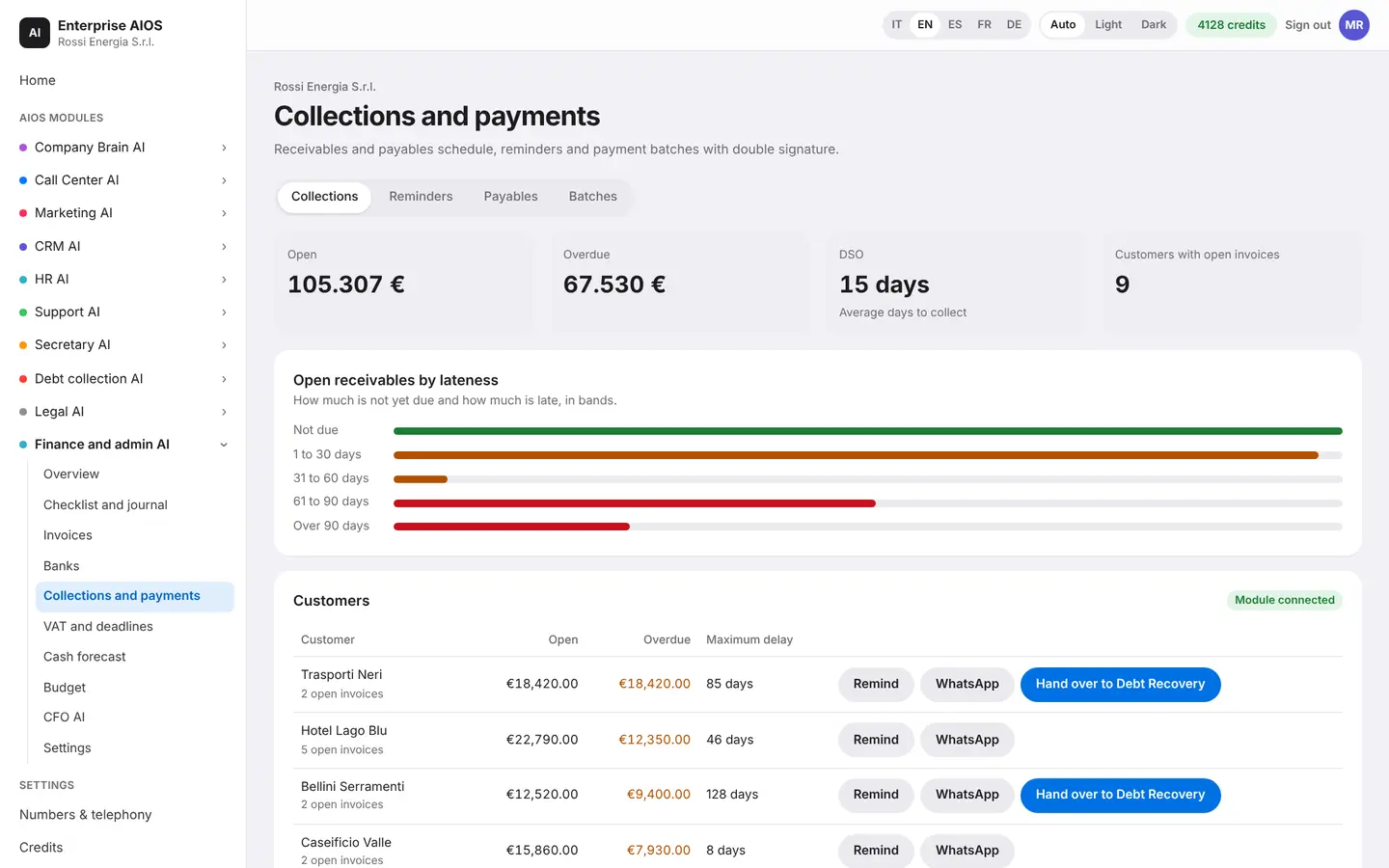
What it does. Shows receivables and payables and prepares reminders and payments.
You see open receivables by days overdue and the customers with unpaid invoices. Reminders grow firmer as the delay grows, by email, WhatsApp or phone call, and when needed the case passes to Debt Collection. For payables you pick what to pay and the batch builds itself, with double approval. Payments with an IBAN to verify stay on hold.
- Receivables by days overdue
- Reminders with rising tone
- Hand-off to Debt Collection
- Batches with double signature
VAT and deadlines
VAT, ready to check.
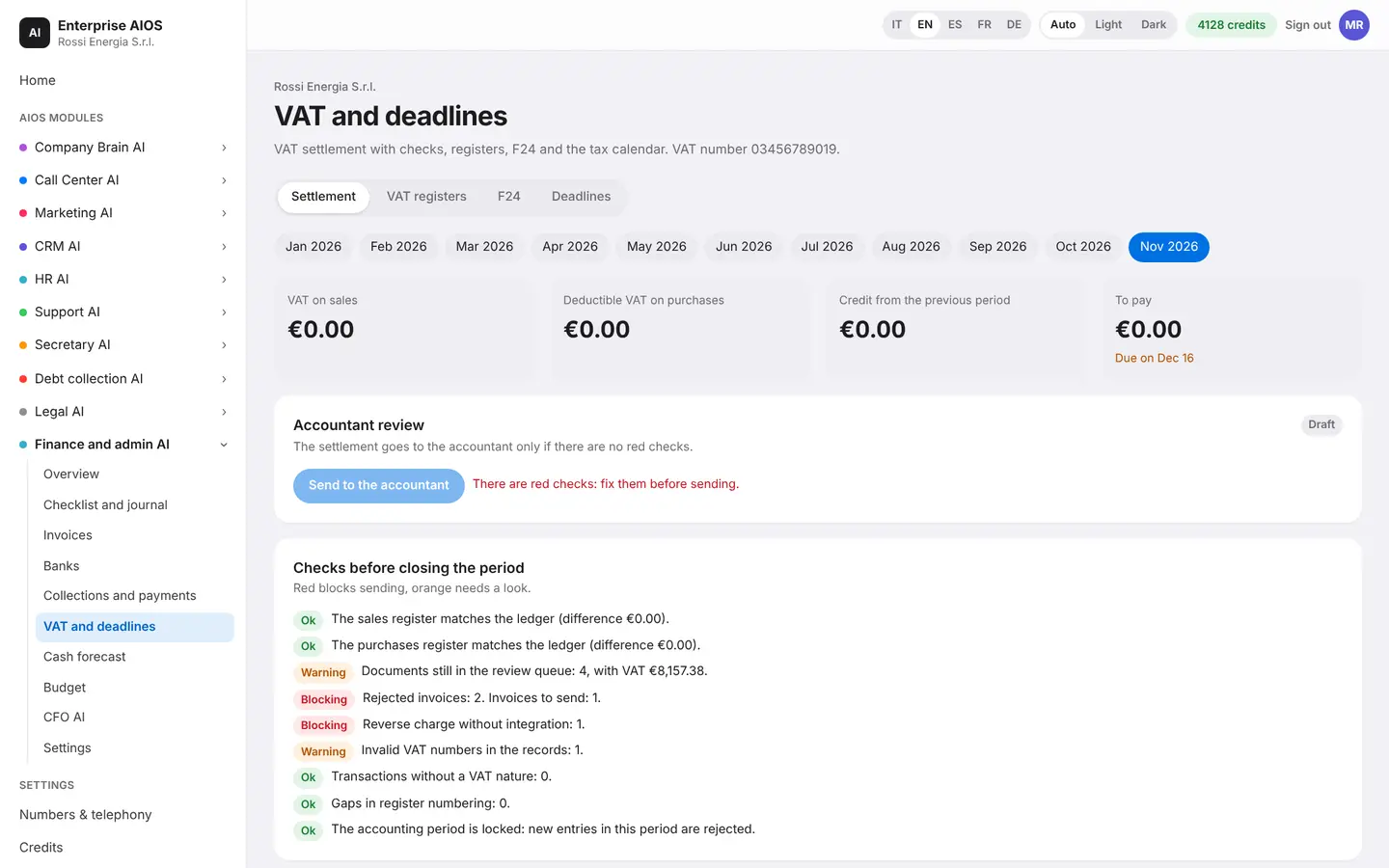
What it does. Prepares the VAT settlement and sends it to your accountant.
The AI prepares the period's settlement, with the VAT registers and the F24 payment form. Before closing the period it runs checks: if one is red, sending is blocked. Then it sends the settlement to your accountant for review. The tax calendar moves holiday deadlines to the next working day.
- VAT settlement with checks
- VAT registers and F24
- Sent to your accountant
- Tax calendar with holidays
Cash forecast
Your cash, 13 weeks ahead.
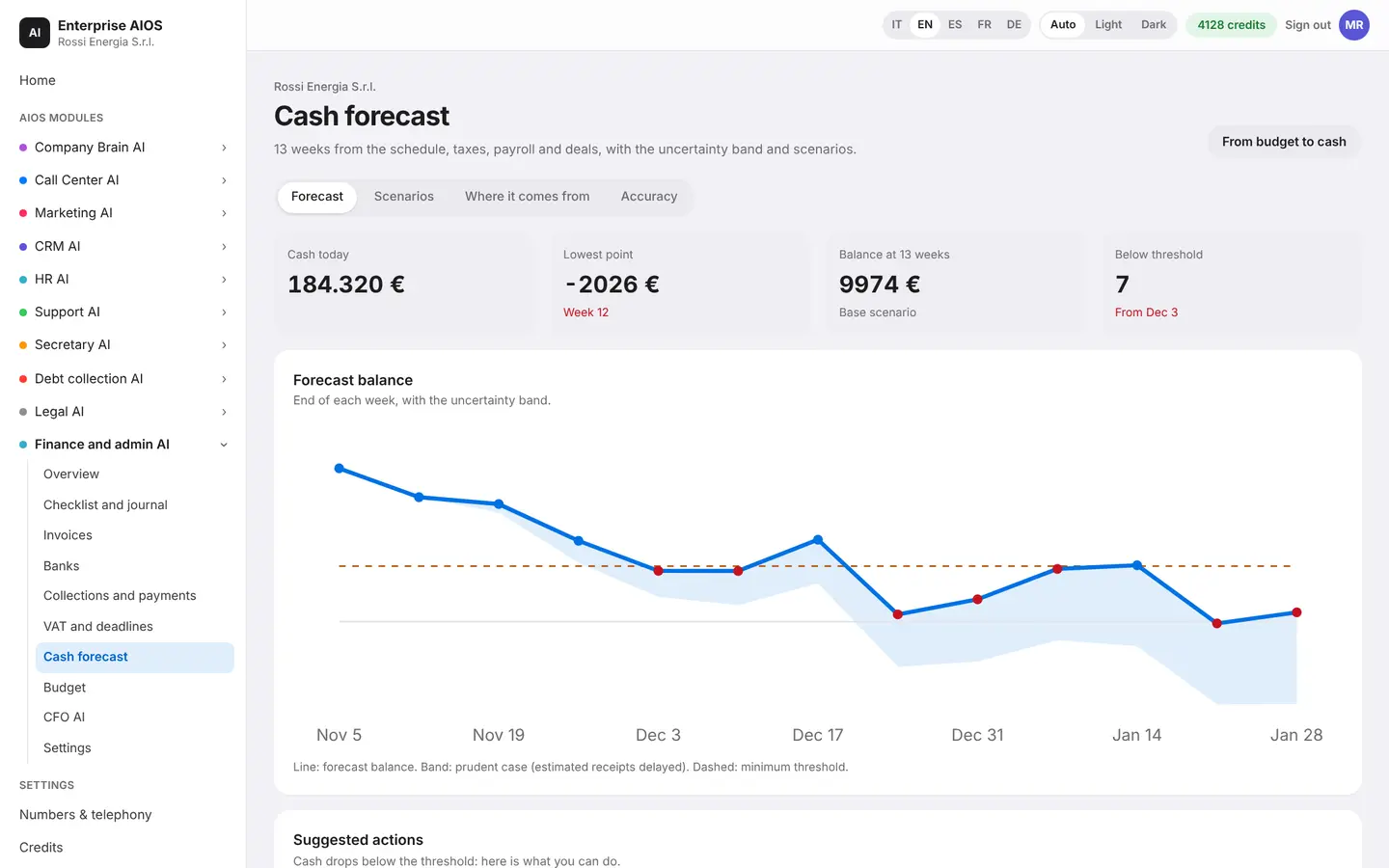
What it does. Calculates the expected balance and lets you simulate scenarios.
The expected balance starts from due dates, taxes, payroll and deals, and shows the uncertainty band. Move the sliders to try scenarios, such as customers paying late: the recalculation is instant. If cash falls below the threshold, the AI suggests what to do, and the forecast is compared with the real movements.
- Expected balance at 13 weeks
- Scenarios with instant recalculation
- Suggested actions below threshold
- Accuracy measured on real data
Budget
Budget and actuals, explained.
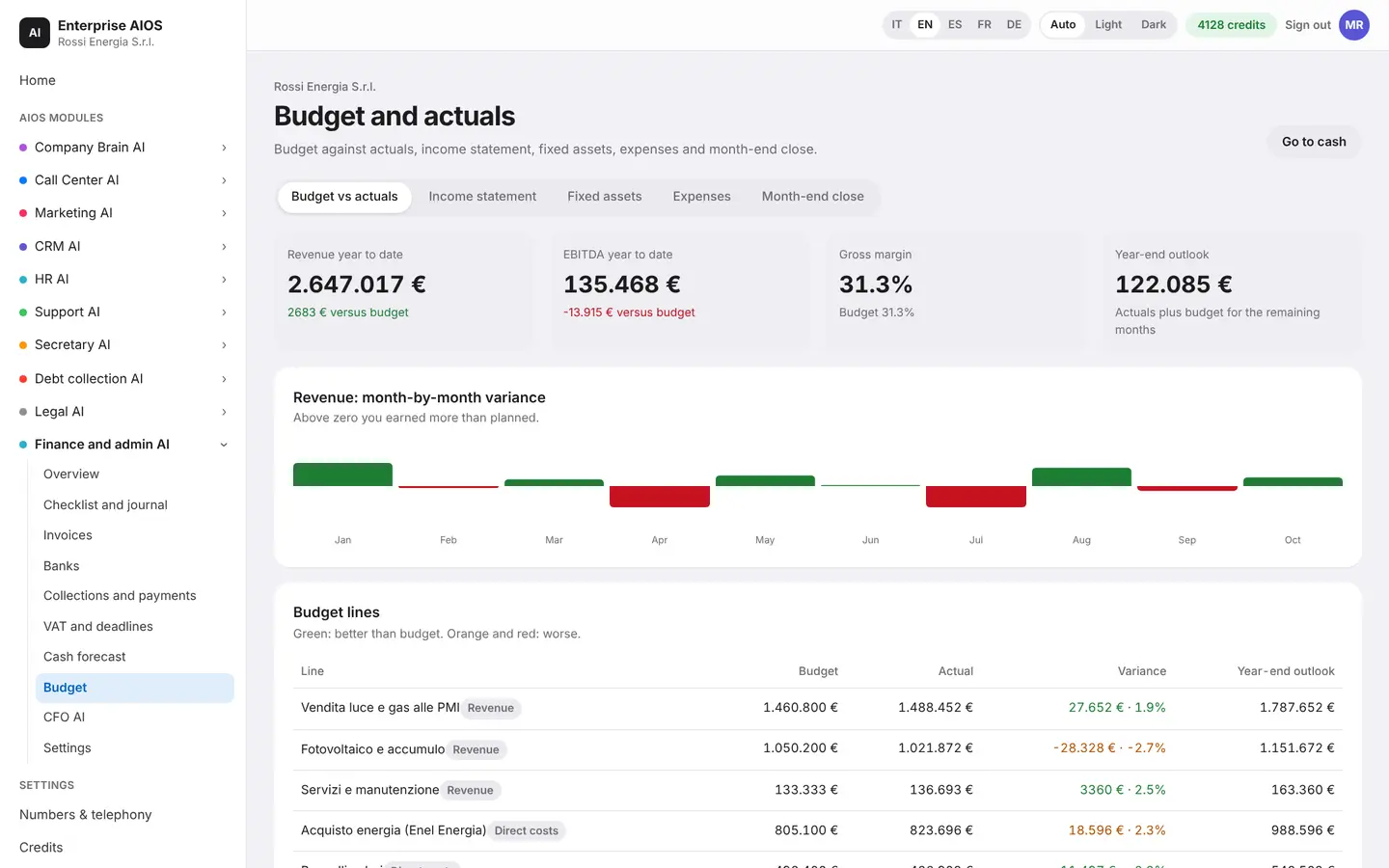
What it does. Compares budget and actuals and explains the differences.
You see budget and actuals by line of business, month by month, with the variance of every item. The income statement runs from the start of the year and includes the year-end estimate. You also find fixed assets, expense reports checked against policy and the steps to close the month.
- Budget against actuals
- Year-end estimate
- Expense reports checked
- Guided month-end close
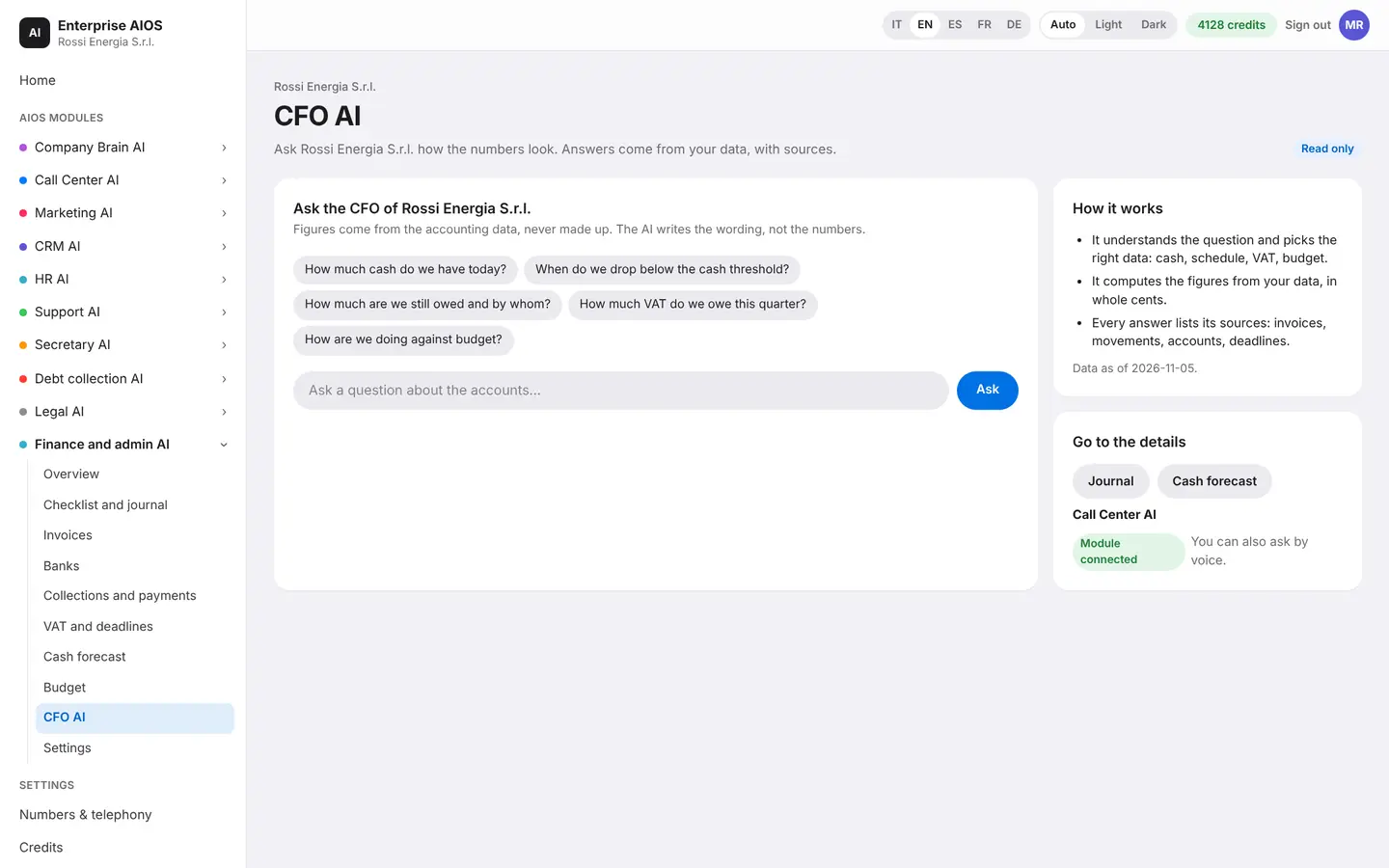
CFO AI
Ask your CFO.
What it does. An AI finance director that answers any question about the numbers.
Type a question, or ask it by voice or on the phone: how much cash do we have, when do we fall below the threshold, how much VAT do we owe. Figures come from your accounting data, never invented, and the AI only writes the text. Every answer shows where each figure comes from, with links to the details. The CFO is read-only: it changes nothing in the books.
- Questions by voice or phone too
- Figures from accounting data
- Sources always shown
- Read-only
Settings
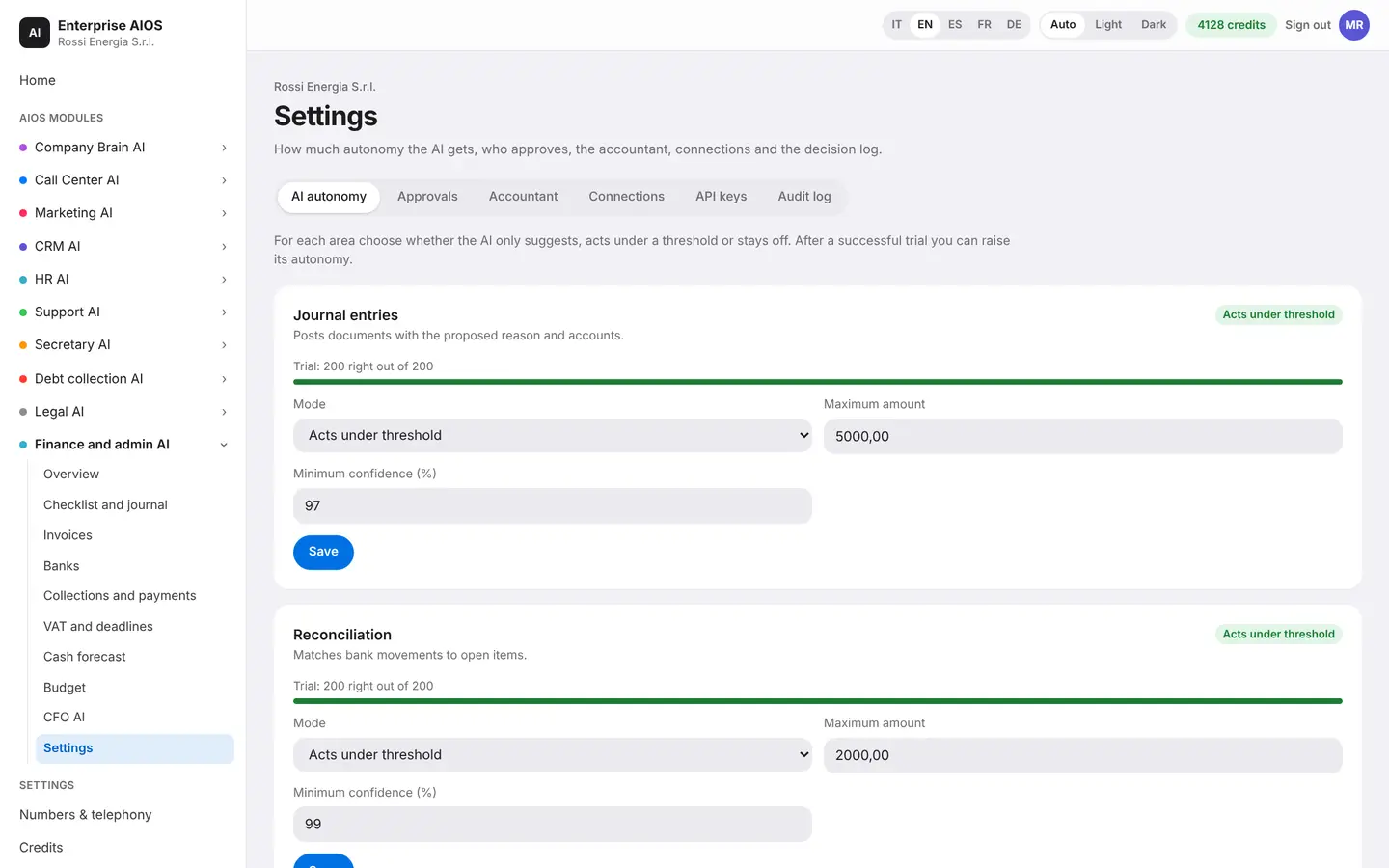
Start in a few steps.
What it does. First setup and access for your accountant.
In settings you do the first setup: how much autonomy the AI has, who approves, and the links with the other modules. You invite your accountant, who sees only the accounting and works on the same data, with no files going back and forth. You can revoke access whenever you want, and the decision log keeps everything.
- AI autonomy of your choice
- Access for your accountant
- No file swapping
- Decision log
Sold on its own
Want to see it on your company?
Works alone or together with the other modules: data flows from one module to the next without typing it twice. We'll show you the module with examples from your industry, or open the dashboard if you're already a customer.
Customer area
Already a customer? Open your dashboard.
Log in with your company email: you'll find your modules, agents at work, approvals and credits.